Week 1: M5StickS3 Setup
M5StickS3 setup guide. If your device is orange (M5StickC Plus), go back and select the correct guide.
The M5StickS3 connects to UIFlow 2.0 directly over USB. No internet connection is required — your laptop communicates directly with the device through a USB serial port.
Step 2: Device Setup
Section titled “Step 2: Device Setup”2a. Driver — Usually Not Needed
Section titled “2a. Driver — Usually Not Needed”The M5StickS3 uses the ESP32-S3’s built-in USB (CDC ACM). On most systems, no third-party driver is required.
Windows 10 / 11: The device usually appears automatically as a COM port under Ports (COM & LPT) in Device Manager. If it does not:
- Right-click the unknown device → Update Driver → Browse my computer → Let me pick → USB Serial Device (CDC)
- If that fails, ask your TA for the CH9102 driver
Mac: No driver needed. The device appears as /dev/tty.usbmodem... automatically.
2b. Connect via USB
Section titled “2b. Connect via USB”- Plug your USB data cable into the StickS3 and your laptop
- Confirm the device appears:
- Windows: Device Manager → Ports (COM & LPT) → look for USB Serial Device or USB-SERIAL
- Mac: Open Terminal and run
ls /dev/tty.usbmodem*— you should see an entry
2c. Recovery: If the Device Becomes Unresponsive
Section titled “2c. Recovery: If the Device Becomes Unresponsive”If the device stops responding at any point, try these steps in order:
Step 1 — Force reset: Hold the side button for 6 seconds until the device powers off and restarts.
Step 2 — Enter boot mode (if still unresponsive):
- Unplug the USB cable
- Hold the side button down
- While holding, plug USB back in
- Continue holding for 4 seconds until the green LED turns on
- Release — the device is now in boot mode and should recover on next restart
If neither step works, ask your TA — do not attempt to reflash firmware yourself.
Step 3: Connect in UIFlow 2.0
Section titled “Step 3: Connect in UIFlow 2.0”- Open uiflow2.m5stack.com in Chrome or Edge
- Log in with your team UIFlow 2.0 account
- In the lower-right corner of UIFlow 2.0, find the connection mode selector
- Default shows:
Cloud Pair— click it - Change to: USB
- Default shows:
- Click Connect — your browser shows a serial port picker dialog (this is expected)
- Select your COM port from the list:
- Windows:
COM3,COM4, etc. - Mac:
/dev/tty.usbmodem...
- Windows:
- Click Connect
You should see a green connected indicator in the IDE.
Step 4: Run Your First Project
Section titled “Step 4: Run Your First Project”- Download the starter project: StickS3-HelloWorld-Base.m5f2
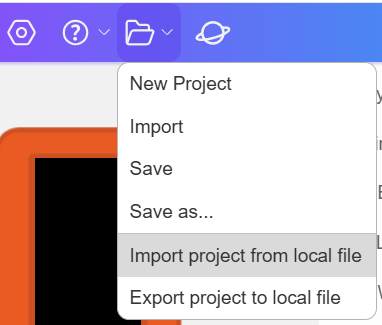
- In UIFlow 2.0, open the folder icon → Import project from local file → select the
.m5f2file
- Click Run (▶ button)
- Watch the LEDs animate on your device!
Once it’s running, explore the blocks: change LED colours, adjust speed, add conditions. You don’t need to understand everything yet — just start modifying and see what happens.
What to Build Next
Section titled “What to Build Next”Troubleshooting
Section titled “Troubleshooting”| Symptom | Quick Fix |
|---|---|
| Device not detected (Windows) | Try different USB cable (data cable!); try CH9102 driver from M5Stack Downloads if still not detected |
| Device not detected (Mac) | Click Allow if “accessories” prompt appeared; run ls /dev/tty.usbmodem* |
| COM port keeps changing | Normal — just note the new number each time |
| UIFlow won’t connect | Confirm USB mode selected (not Cloud Pair); use Chrome or Edge |
| ”Timeout / Write error” | Enter boot mode: hold side button while plugging in USB, hold 4 sec until green LED |
| Screen is black / unresponsive | Hold side button ~6 seconds to force reset |
| Device bricked after firmware burn | Boot mode (step 2c) → ask TA immediately; do not attempt re-flash without guidance |
If nothing works after 20 minutes: Ask your TA to use their laptop. No penalty — some PCs have IT restrictions that block USB serial access.
See the full Troubleshooting Guide for detailed solutions.
Was this page helpful?